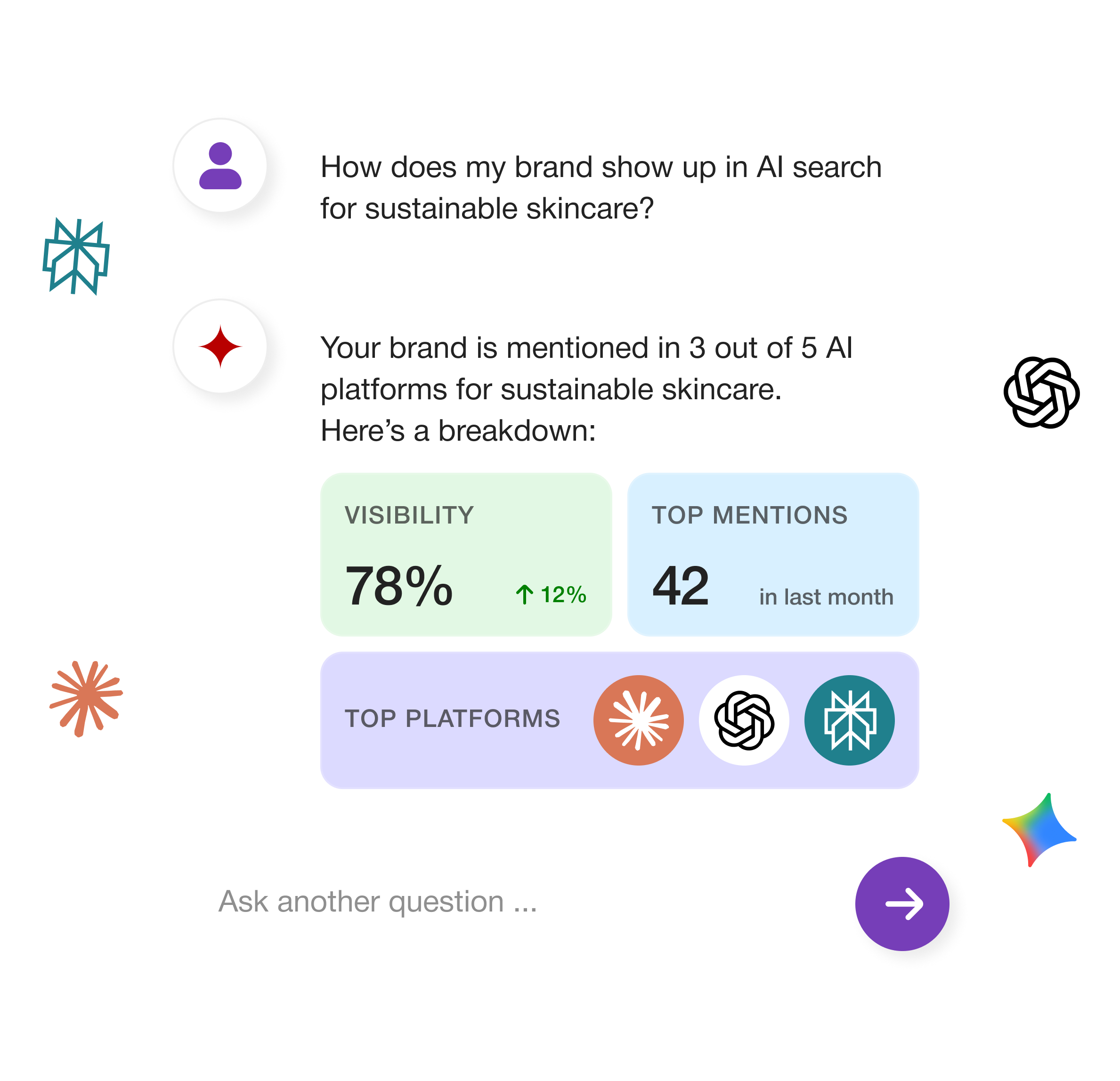
Access your Track My Visibility data right from ChatGPT, Claude, Gemini, Perplexity, and more. Ask in natural language. Get clear, data-backed answers on how your brand shows up in AI search.
Copy a prompt, swap in your brand, and let your assistant do the digging across your TMV data.
Competitive gap
Find where AI skips you
Using Track My Visibility data for [brand] , list the prompts where competitors are mentioned and we are not. Group them by topic, rank them by how many AI models mention a competitor, and suggest the page we should create or improve for each.
For [brand] , show the domains and URLs AI models cite most across our tracked prompts. Flag the ones that mention competitors but not us, and list 5 pages or threads we should get featured on first.
Using Track My Visibility, show the industry ranking for [brand] . Who ranks above us in each AI model, which prompts drive their lead, and what should we publish to close the gap?
Using TMV data, summarise how AI models describe [brand] compared with [competitor] . Pull out negative or inaccurate claims, which model makes them, and the sources behind them.
Compare [brand]‘s visibility and sentiment in the 30 days before and after [date] . Which prompts and models moved most, and which new sources started citing us?
List the prompts where AI answers about [category] don’t mention [brand] . For each, tell me which competitor is named first and what angle the answer takes.
Create a monthly AI visibility report for [client]: visibility, average position and sentiment by AI model, biggest gains and drops, top competitors, top cited URLs, and 3 recommended actions.
For [brand], find product prompts like “best [category] under $100″ where AI recommends competitors instead of us. What do the cited pages have that ours don’t?
Tracked across ChatGPT, Google AI Overviews, Gemini, Perplexity and more. Your assistant only sees the brands your TMV account can see.
Visibility summary
How often your brand appears in AI answers, where it ranks and how it's described, across models.
visibility_summary
Prompts and AI responses
Every tracked prompt and the full answer each AI model gave, with brands mentioned.
list_prompts · list_responses
Competitors and industry ranking
Your tracked competitors and where every brand ranks in your industry.
list_competitors · industry_ranking
Citation sources
The domains and URLs AI models cite when they answer your prompts.
citations_source_usage
Models, topics and tags
The AI models, topics and tags you track, for filtering any question.
list_models · list_topics · list_tags
Manage tracking
Add or remove prompts and competitors right from your AI assistant.
add_prompt · delete_prompt · add_competitor
Trusted by Growing Teams
Hear how early adopters of our LLM visibility tool use it for tracking AI citations, URL-wise reports, and improving AI visibility.
“Within two weeks we uncovered three high-intent queries where we weren’t cited. And as we fixed, it boosted our AI mentions by 27%.”
“This is truly our Ahrefs for AI. I generated queries in bulk, the tool helped alot for competitor gap analysis. And now I know what to write more content on, and grab that visibility on chatGPT.”
“Our clients love the URL-wise citation reports by Track My Visibility. It’s become a standard slide in our monthly performance meetings.”
"What I like most is how practical it is. It shows exactly how AI tools see your brand and highlights visibility gaps that traditional SEO tools often miss."
"Track My Visibility gave us a clearer view of how AI platforms understand our brand. The Sources tab made it easy to identify which content needed improvement."
"The content gap insights helped us focus on topics that improve AI visibility. It made content planning faster, more targeted, and easier to prioritize."
"AI visibility felt like a black box. Track My Visibility showed us where we appeared, where we didn’t, and what to improve. It saved us weeks of guesswork."
"Having AI mentions, citations, source data, and competitor insights in one place is incredibly useful. It’s now a key part of our monthly SEO reporting."
"Track My Visibility makes it easy to measure AI visibility, track competitors, and improve the content influencing AI results."
"Clear reports and actionable insights help us understand our AI visibility and prioritize content improvements."
Bring your AI visibility data where the work happens
One-time setup. Every answer backed by real tracking data. Faster reports, clearer priorities.
Quick answers to the most common questions about AI Search and Track My Visibility.
What is TMV MCP?
MCP (Model Context Protocol) is an open standard that lets AI assistants use outside tools and data. TMV MCP connects your assistant to your Track My Visibility account, so it can answer questions with your real AI visibility data.
How do I connect TMV MCP with Claude?
In Claude, open Settings → Connectors → Add → Add custom connector. Name it Track My Visibility, paste the TMV server URL and click Continue, then sign in to TMV. Open the Claude guide.
How do I connect TMV MCP with ChatGPT?
Turn on Developer mode in Settings → Security and login, then create a connector with the TMV server URL and OAuth sign-in. Open the ChatGPT guide.
Which plan do I need?
MCP access is included with paid Track My Visibility plans. If you’re on the 7-day trial, you can connect and test it during your trial.
What data can I access?
Your visibility summary, tracked prompts and the AI responses to them, competitors and industry ranking, citation sources, and the models, topics and tags you track.
Can the AI change anything in my account?
Only your tracking setup. Your assistant can add or delete prompts and add competitors; everything else is read-only. Most AI apps ask you to confirm before running an action that changes data.
Who do I contact if I need help setting up MCP?
Contact our support team from the Contact Us page, or reply to your onboarding email. Tell us which AI assistant you’re using and where you got stuck.
Claude
Connect Track My Visibility to Claude (custom connector).