


Seeing a “Missing H1” opportunity in an SEO audit means the page does not have a heading marked with an <h1> tag.
A missing H1 is not necessarily a direct ranking issue, but it can make the page structure less clear for users and search engines. The H1 helps users understand the main topic of the page and gives visitors a clear idea of what the content is about.
The issue may occur due to incorrect HTML, a CMS or theme setting, a page builder, or how the page is rendered.
In this guide, you will learn what a missing H1 means, how it can affect SEO, and how to fix the issue correctly.
TL;DR
- A missing H1 can make the page structure less clear for users and search engines.
- Check whether the H1 is missing, empty, incorrectly coded, or not rendering properly.
- Fix the issue by adding a clear, descriptive H1 that matches the page topic and search intent.
- If many pages are affected, fix the CMS, theme, or template rather than updating each page manually.
- Recheck the page to ensure the H1 is visible and supported by a logical heading structure.
What Does “Missing H1” Mean?
A missing H1 means a webpage does not contain an <h1> element that identifies its main heading. This can also occur when:
- No <h1> element exists anywhere in the page HTML.
- The H1 tag is present but contains no text.
- A visible heading is coded using a non-heading element such as <div> or <span>.
- The page structure creates a heading-level mismatch, so the main heading is not recognized as a standard <h1> element.
For example, this may look like a main heading:
<div class=”page-title”>Running Shoes for Women</div>
But technically, it is not an H1. A properly marked main heading would look like:
<h1>Running Shoes for Women</h1>
Track My Visibility flags the page because it cannot find a properly defined <h1> element in the page’s HTML or rendered content. What causes each of these to happen is covered in the next section.
Does a Missing H1 Impact SEO?
A missing H1 does not automatically hurt rankings or prevent a page from appearing in Google Search. However, a clear H1 can support SEO, usability, accessibility, and a better-organized page structure.
Clarifies the Page Topic for Search Engines
A descriptive H1 helps communicate the main topic of the page. Google recommends placing words people use to search in prominent locations, including the page’s main heading.
Improves the User Experience
The H1 gives visitors an immediate understanding of what the page is about. A clear main heading also makes the content easier to scan and helps users confirm that they have landed on a relevant page.
Supports Accessibility
Headings help communicate the structure of a page to assistive technologies. Screen reader users can also use headings to navigate between sections and understand how the content is organized.
Creates a Clearer Content Structure
Fixing a missing H1 creates a clearer heading hierarchy for both users and crawlers. Multiple H1s are not automatically an SEO problem, but the page should still have a clear primary heading and logically organized supporting headings.
The H1 may also influence how Google generates title links. Google can use the main visual title, heading elements, and other prominent text when determining the title shown in search results.
Because both the H1 and title tag help describe a page, it is also important to understand how they differ and how they work together.
H1 vs Title Tag: What’s the Difference?
These get confused constantly because they often contain similar text, but they’re doing different jobs.
| Title Tag | H1 | |
| Location | <head> of the HTML | Visible on the page, in <body> |
| Where it shows | Browser tab, and often the blue link in Google search results | On the page itself, as the main visible heading |
| Purpose | Summarizes the page for search engines and browser tabs | Tells a visitor (and a crawler) the page’s main topic at a glance |
| Can Google change what appears in search results? | Yes, Google may generate a different title link using the H1 or other prominent page content. | Stays as the page heading, although Google may use it as a source when generating the search result title. |
Keep the title tag and H1 closely related. Both should clearly describe the page, but they do not need to match word for word
Why Is Your H1 Missing?
A few root causes include a template, theme, page builder, HTML or rendering issue rather than a one-off content mistake.
- Wrong HTML element: The heading is wrapped in a <div> or <p> instead of an <h1>, usually to hit a specific visual style.
- CMS or theme issue: Some themes skip the H1 on certain page types, or use the site logo as the H1 instead of the actual page content.
- Page builder issue: Tools like Elementor, Divi, or Webflow default heading blocks to a non-H1 level unless it’s set manually.
- JavaScript rendering: If the H1 is added only through client-side JavaScript, some crawlers may process it differently from content included directly in the page HTML. For important elements like the main heading, it is safer to make the H1 available in the initial or server-rendered HTML.
- Template or migration issue: A redesign or platform migration drops the H1 from a shared template, affecting every page using it at once.
Finding the underlying cause helps you determine whether you need to fix one page or make a broader change to the website template.
How to Confirm a Missing H1
You can confirm whether the affected page is missing an H1 by checking the page source or rendered HTML.
1. Check Page Manually
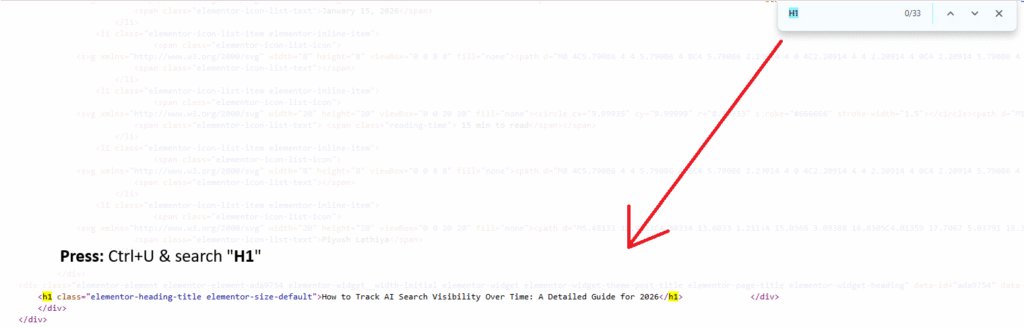
Open the page, right-click, and select View Page Source. You can also use Ctrl+U on Windows or Cmd+Option+U on Mac.
Search for <h1 in the source code. If no H1 element appears, the page does not have an H1 in the raw HTML.
2. Check Whether Other Pages Have the Same Issue
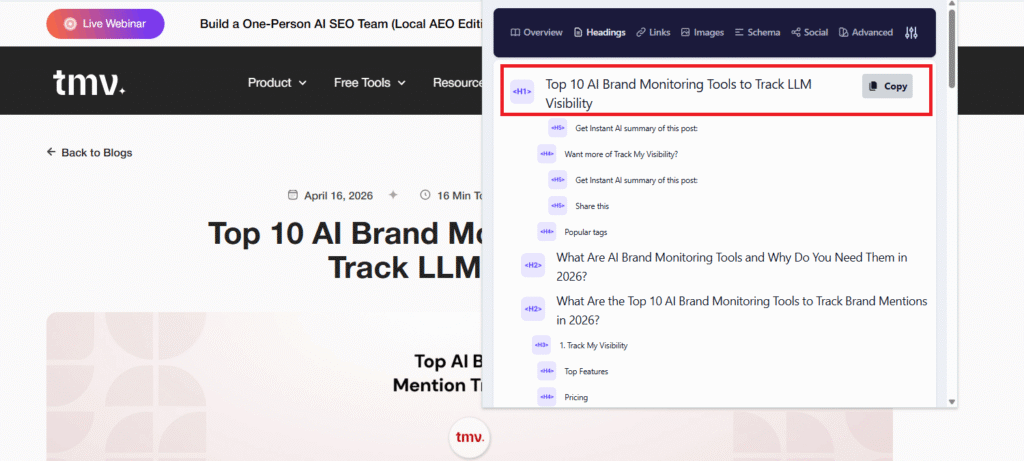
If the same issue affects multiple pages, check similar URLs or templates in Track My Visibility. For a broader sitewide audit, you can also use tools such as Screaming Frog, Ahrefs Site Audit, or Semrush.
These tools can help identify pages with:
- Missing H1 tags
- Empty H1 tags
- Multiple H1 tags
- Duplicate H1s
A sitewide crawl also makes it easier to spot patterns across product pages, category pages, blog templates, or other page types.
3. Check Whether the H1 Appears After JavaScript Loads
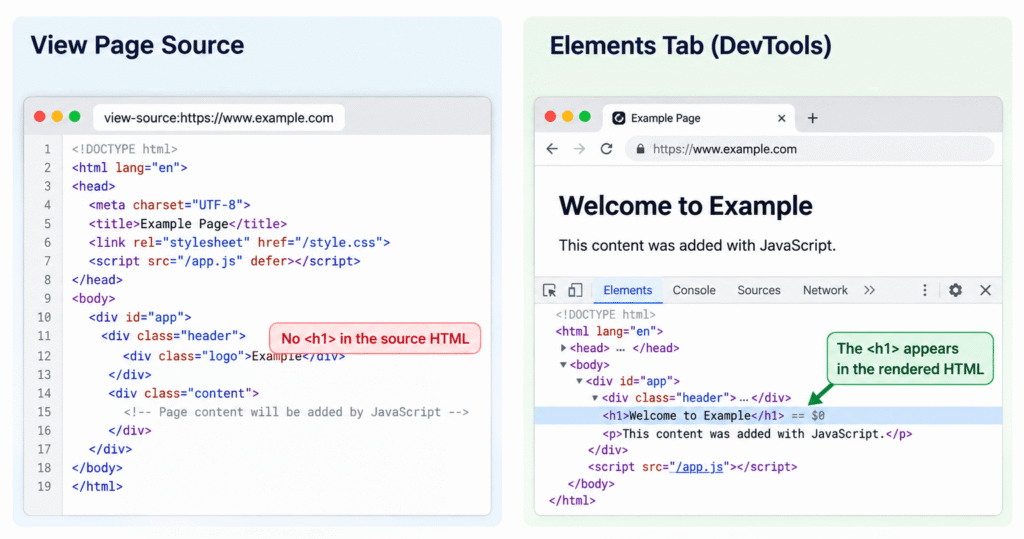
View Page Source shows the HTML initially delivered by the server, while the Elements tab in browser DevTools shows the rendered page after JavaScript has run.
If the H1 appears only in the rendered HTML, review how the page is generating the heading and consider making the H1 available in the initial page HTML where possible.
4. Review the Affected Templates
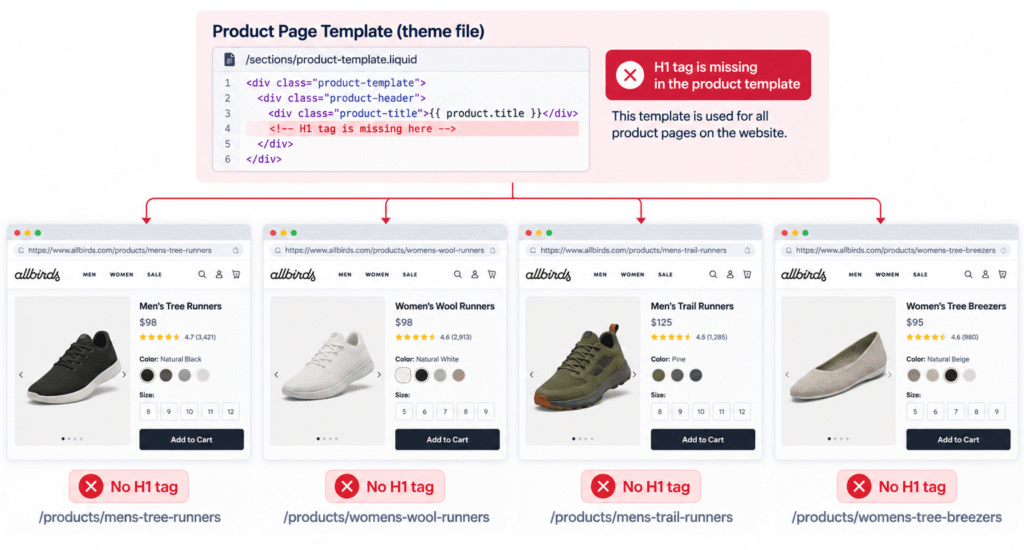
If many similar pages are missing H1 tags, check whether they use the same theme, template, or component. If they do, fix the shared template first instead of updating each page individually.
For example, if all product or category pages are affected, the issue is likely coming from the shared template rather than from each individual page.
Once you know which pages are affected and what is causing the issue, you can move on to fixing the H1 correctly.
How to Fix a Missing H1 Tag
To fix a missing H1, add one clear <h1> that describes the main topic of the page and place it near the top of the main content.
1. Add the Main Page Heading
Identify the single core topic of the page and use it as the main heading.
For example:
<h1>Running Shoes for Women</h1>
Avoid placing the H1 in a sidebar, footer, or another secondary section. It should represent the primary content users see when they land on the page.
2. Resolve Template-Level Issues
If the same H1 issue appears across many pages of the same type, do not update each page individually.
Check the shared template and make sure it automatically displays each page’s title inside an <h1> tag. This allows one template change to fix all affected pages.
After updating the template, clear your website cache and CDN cache so an older cached version does not make the issue appear unresolved.
3. Update the H1 on CMS Platforms
The steps vary slightly by platform, so check how your CMS or page builder handles the main page heading before making changes.
Fixing H1 in WordPress
The H1 is usually controlled by the theme template or content block that displays the page or post title.
Check files or templates such as:
- page.php
- single.php
- theme template parts
- the equivalent title block in a block theme
SEO plugins such as Yoast or Rank Math may identify a missing H1, but the heading still needs to be added in the theme, template, or page content.
Fixing H1 in Shopify
Check the relevant theme section or .liquid template responsible for displaying the page title.
Make sure the actual product, collection, or page title is wrapped in an <h1>. Also check whether the theme is using the site logo as the H1 instead of the page’s primary heading.
Fixing H1 in Webflow
Select the visible page heading and open its settings.
Confirm that Heading Level is set to H1. A heading can visually look like the main title while still being assigned another heading level.
Fixing H1 in Squarespace and Wix
Check the page title and heading settings for the affected page.
Make sure the visible main title is assigned as an H1 rather than being displayed only as styled text.
After making the fix, recheck the page source or rendered HTML and run another crawl to confirm the H1 is now detected correctly.
If Multiple Pages Have Missing H1s, What Should You Fix First?
Prioritize missing H1 issues based on page importance and problem occurrence.
1. Template-Level Issues
Fix these first when the same problem affects many product, category, service, or blog pages. One template change can resolve the issue across multiple URLs.
2. High-Value Pages
Prioritize important product, service, category, landing, and conversion-focused pages that are missing a clear H1.
3. Pages Already Receiving Organic Traffic
Pages that already rank or receive search traffic should be reviewed early because they are already visible to users and search engines.
4. Empty H1s
Fix pages where the H1 exists but is empty, generic, hidden, or coded using the wrong HTML element.
5. Lower-Priority Pages
Utility pages, low-value pages, and pages excluded from search can usually be reviewed after important indexable pages are fixed.
Once the issues are resolved, focus on writing a clear, descriptive H1 that accurately reflects the page’s main topic and search intent.
How to Write a Good H1
A good H1 should clearly describe the page’s main topic, helping both users and search engines understand what the content is about.
- Use one clear primary H1: For most pages, one main H1 keeps the primary topic easy to identify and creates a simpler structure for users and assistive technologies.
- Include the main topic naturally: Include the page’s main topic or primary keyword naturally in the H1, without forcing or repeating keywords.
- Match the title tag’s intent: The H1 and title tag do not need to be identical, but they should describe the same page and support the same search intent.
- Keep it descriptive: Write an H1 that reflects the specific page topic rather than using a vague heading or just the company name.
- Maintain a logical heading hierarchy: Use the H1 as the main page heading, with H2s and H3s organizing the supporting sections where needed.
- Keep it visible and easy to read: Place the H1 near the top of the main content and avoid hiding it or adding it only for search engines.
There is no fixed Google character limit for H1 tags. Focus on making the heading clear, concise, and specific enough to describe the page accurately.
A Clear H1 Is a Small Fix That Matters
An H1 may seem like a small technical detail, but it plays an important role in how a page is understood.
The goal is not just to clear the Missing H1 opportunity in Track My Visibility. It is to make sure the page has one clear main heading that accurately reflects what the content is about.
When the H1 is clear, relevant, and properly implemented, it creates a better experience for users while giving search engines a cleaner understanding of the page.
FAQ
No, not every webpage needs an H1. Google can rank pages without an H1, but best practice is to include one descriptive H1 on every indexable page to clarify topic intent for users and AI crawlers.
After the H1, place a short introductory paragraph, then a logical H2–H6 hierarchy that outlines sections. This helps readers scan, supports accessibility, and provides search engines with a clear topical structure.
Yes, Google can rank a page without an H1. Google has confirmed pages can rank with zero, one, or multiple H1s, though a missing H1 may weaken topical clarity and reduce click-through and accessibility benefits.
There is no fixed character limit for an H1. Keep it clear, concise, and descriptive enough to explain the page’s main topic.
Yes, a page can have multiple H1 tags, but using one clear primary H1 usually makes the main topic easier to understand for users and search engines.
No, an H1 is not explicitly required for WCAG compliance. However, WCAG 2.1 requires a clear, logical heading structure (SC 1.3.1, 2.4.6), and one descriptive H1 per page is the standard way to meet these requirements and support screen-reader navigation.